Have you ever taken a photo of a word search puzzle, uploaded it to our solver, and gotten a single row of random letters instead of a proper grid? You're not alone. This is one of the most common issues we see, and it has a simple fix.
What Went Wrong
Here's a real example from one of our users. They uploaded a photo of a word search puzzle that was printed sideways on the page:
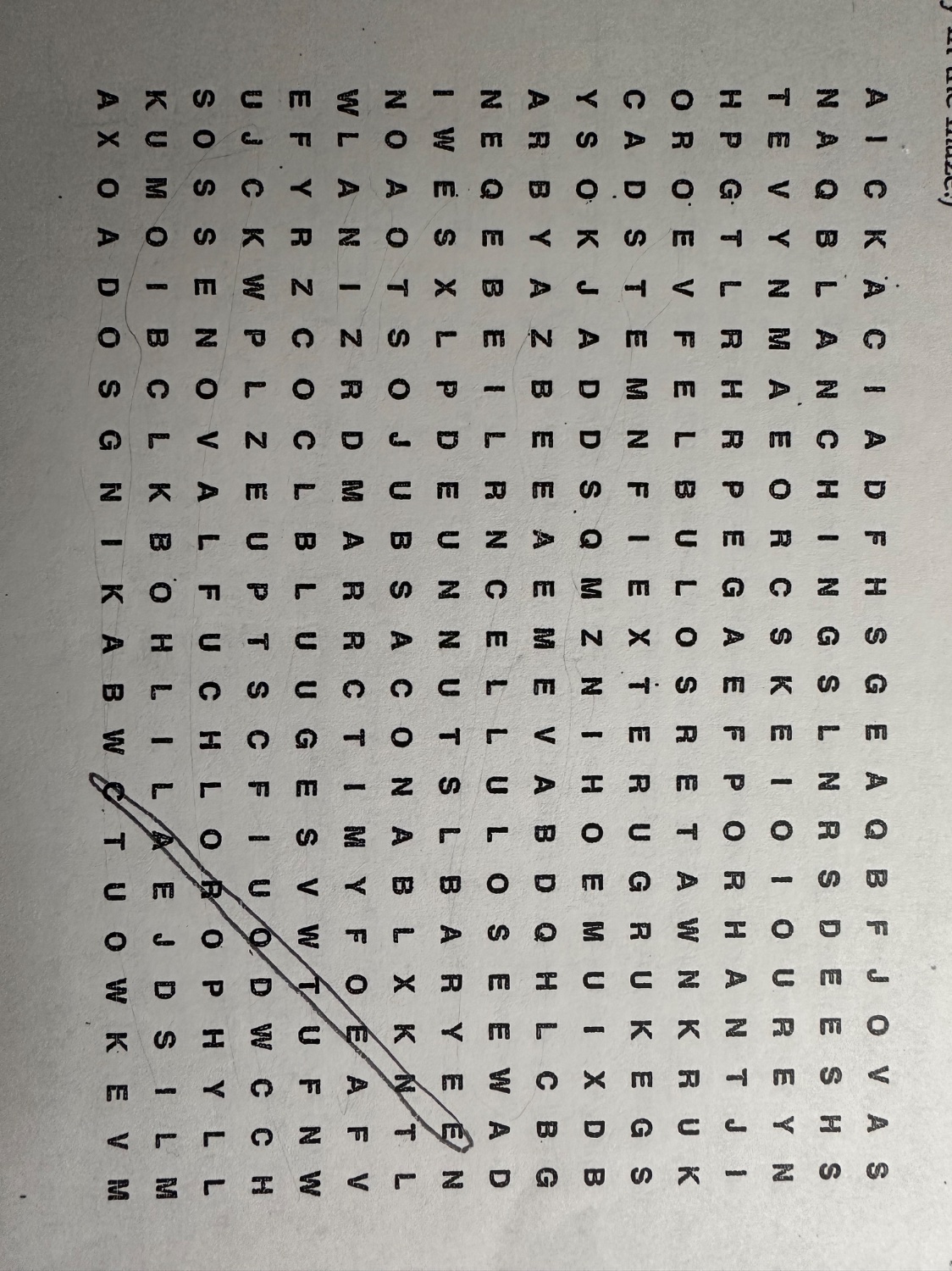
The puzzle grid looks fine to the human eye — you can read the letters if you tilt your head. But our text recognition system (OCR) reads the image strictly left-to-right, top-to-bottom. When the grid is rotated 90 degrees, the OCR reads across what are actually vertical columns, producing a single long string of garbled letters instead of a proper grid.
The result? A single row with all the letters mashed together, and none of the words can be found.
Why OCR Can't Handle Sideways Text
Optical Character Recognition works by scanning an image in horizontal lines, looking for letter shapes along each row. It's designed to read text the way you normally would — left to right across the page.
When a word search grid is rotated:
- Each "row" the OCR reads is actually a column of the puzzle
- Letters from different rows get concatenated into one line
- The grid structure is completely lost
- Words that span horizontal rows in the original puzzle now span multiple OCR lines
This isn't a bug — it's a fundamental limitation of how text recognition works. The OCR is doing exactly what it's supposed to do, but the input image doesn't match its expectations.
The Fix: Rotate Before Uploading
We've added a rotate button to the photo crop screen. When you upload a photo and the crop tool opens, you'll see a rotate icon in the footer. Each tap rotates the image 90 degrees clockwise.
Here's how to use it:
- Upload your word search photo as usual
- When the crop screen opens, check if the grid looks sideways
- Tap the rotate button until the letters are right-side up
- Crop tightly around the grid
- Hit "Crop & Upload" and the solver will work correctly
Tips for Best Results
- Rotate before cropping — the rotate button resets your crop selection, so rotate first, then crop
- Check the orientation — if the letters in the grid read naturally left-to-right, the orientation is correct
- Good lighting matters — even with correct orientation, shadows and glare can hurt OCR accuracy
- Crop tightly — exclude word lists, titles, and borders from the grid photo for the best results
- Use two uploads — upload the letter grid and the word list separately for the most accurate results
When to Use AI Mode
If you're still getting poor results after rotating, try toggling on AI mode. Our AI-powered OCR uses a vision model that's better at handling tricky images — unusual fonts, low contrast, or grids with decorative borders. You get one free AI scan per day.
Word search puzzles come in all shapes and orientations. With the rotate feature, sideways puzzles are no longer a problem.